OBS & Stream Deck· 2-3 min read
Stream Deck
Map Trigglow alert controls to Stream Deck with the Trigglow plugin (one setup URL) or System → Website with GET in background.
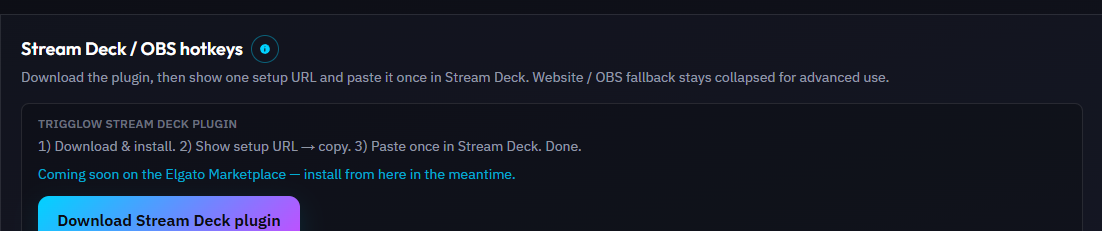
Plugin (recommended): Overview → download
com.trigglow.overlay.streamDeckPlugin → install → add Skip, Repeat, Pause/Resume, Mute/Unmute, Clear, or Create clip from Trigglow → paste the single setup URL once via “Paste from clipboard”.Website fallback: System → Website → paste a per-key control URL → enable “GET request in background”. Prefer toggle-pause / toggle-mute. Optional
/stream-deck PNG icons.Song request keys (beta plugin): Song: next, Song: pause / play, Song: volume + / −, Song: clear queue and Song requests on / off. Warm coral→amber icons with a note badge tell them apart from the alert keys. Pause / play and requests on / off are one key each that switches state.
Steps
- 1Overview → Download Stream Deck plugin.
- 2Overview → Show Stream Deck setup URL → Copy.
- 3Stream Deck → Paste from clipboard on any Trigglow key (global for all keys).
- 4Keep the OBS overlay open, Test an alert, then press the key.
Note
Develop API:
https://dev.trigglow.com — production: https://api.trigglow.com (never trigglow-api.virosms.com).Tip
After Rotate secret, paste the new setup URL once in Stream Deck.
Warning
Control tokens grant overlay control — treat like passwords; rotate if leaked.
Note
Marketplace listing: see
apps/stream-deck-plugin/MARKETPLACE.md (sideload download always available from Overview).Was this guide helpful?