OBS & Stream Deck· 2-3 min read
OBS hotkeys
Skip, pause, or repeat alerts from OBS while the Browser Source stays open.
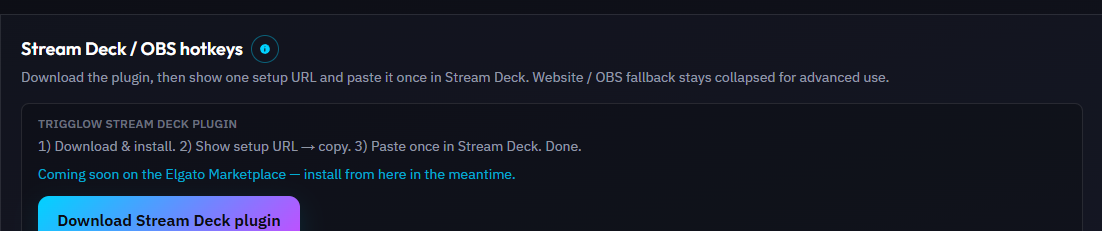
Control URLs are secret GET links from Overview → Stream Deck / OBS hotkeys → Show control URLs. Anyone with a link can control your overlay — treat them like passwords.
Actions: Skip (drop current), Repeat (replay last), Pause (stop current + hold queue), Resume (continue), Mute (hold queue but keep current), Unmute, Clear (empty queue).
Song requests have their own URLs (Stream Deck page → Advanced): next song, pause / play, volume + / −, clear the song queue and open / close requests. They work with the YouTube player and with Spotify.
The overlay Browser Source must stay running. Controls talk to OBS through that page over the network — they do not replace the overlay URL.
Steps
- 1Overview → Show control URLs → copy the action you need (start with Skip and Pause).
- 2OBS → View → Docks → Custom Browser Docks → add a dock named e.g. “Trigglow Skip” and paste the Skip URL. Opening or refreshing that dock fires the action once.
- 3Bind an OBS hotkey to show/hide or refresh that dock (or use a tiny local script / AutoHotkey that opens the URL in the background).
- 4Test live: fire an alert with Test, then trigger Skip / Pause / Resume from the dock or hotkey.
Warning
Rotate the secret if a URL leaks (Overview → Rotate secret) — old buttons stop working.
Tip
Prefer Stream Deck if you want one-press buttons without managing docks.
Warning
Never put control URLs in public chat or on a public reverse proxy.
Note
GET control requires the secret token in the URL (login cookies alone are not enough).
Was this guide helpful?