Getting started· 2-3 min read
Getting started
Create an account, link Kick, Twitch or YouTube, add the OBS overlay, then build your first trigger.
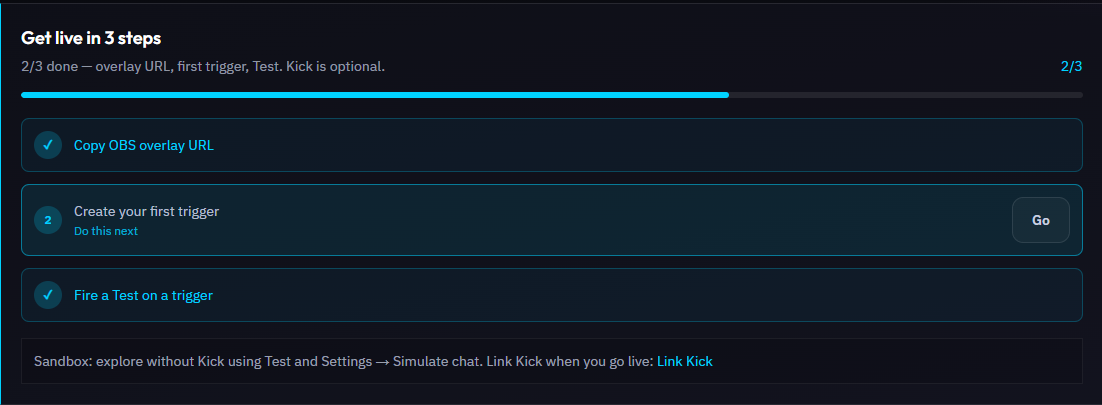
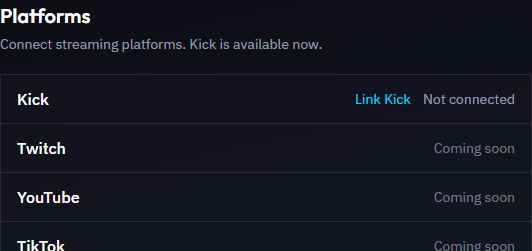
You can sign up with email, Kick, or Twitch. Link Kick, Twitch or YouTube for live chat commands and events; channel-point rewards need Kick or Twitch.
Steps
- 1Create an account (or log in with Kick or Twitch) and verify your email if asked.
- 2Open Connections or Settings → Link Kick / Twitch / YouTube so Trigglow can read rewards and events.
- 3On Overview, copy your Overlay URL and add a Browser Source in OBS at 1920×1080, stretched to the canvas, with a transparent background.
- 4Create a trigger under Triggers → New, then click Test while OBS is open.
Warning
Do not add
?preview=1 to the OBS URL — that mode is for the dashboard only and is not transparent.Tip
Keep the Browser Source unmuted if you use sounds or TTS.
Tip
No Kick or Twitch account yet? Turn on Sandbox in Settings to build and test triggers without linking a platform, then link one later.
Was this guide helpful?